How to transfer music from a computer to iPhone
By Mohd Mahmodi, who makes the app. Updated November 5, 2026.
Apps that support file sharing get their own folder that a computer can write to. Offline Music Player has one, and anything you copy there shows up in your library.
From a Mac
- Connect your iPhone and open a Finder window.
- Select your iPhone in the sidebar, then click Files.
- Drag your songs or folders onto Music Player in the list.
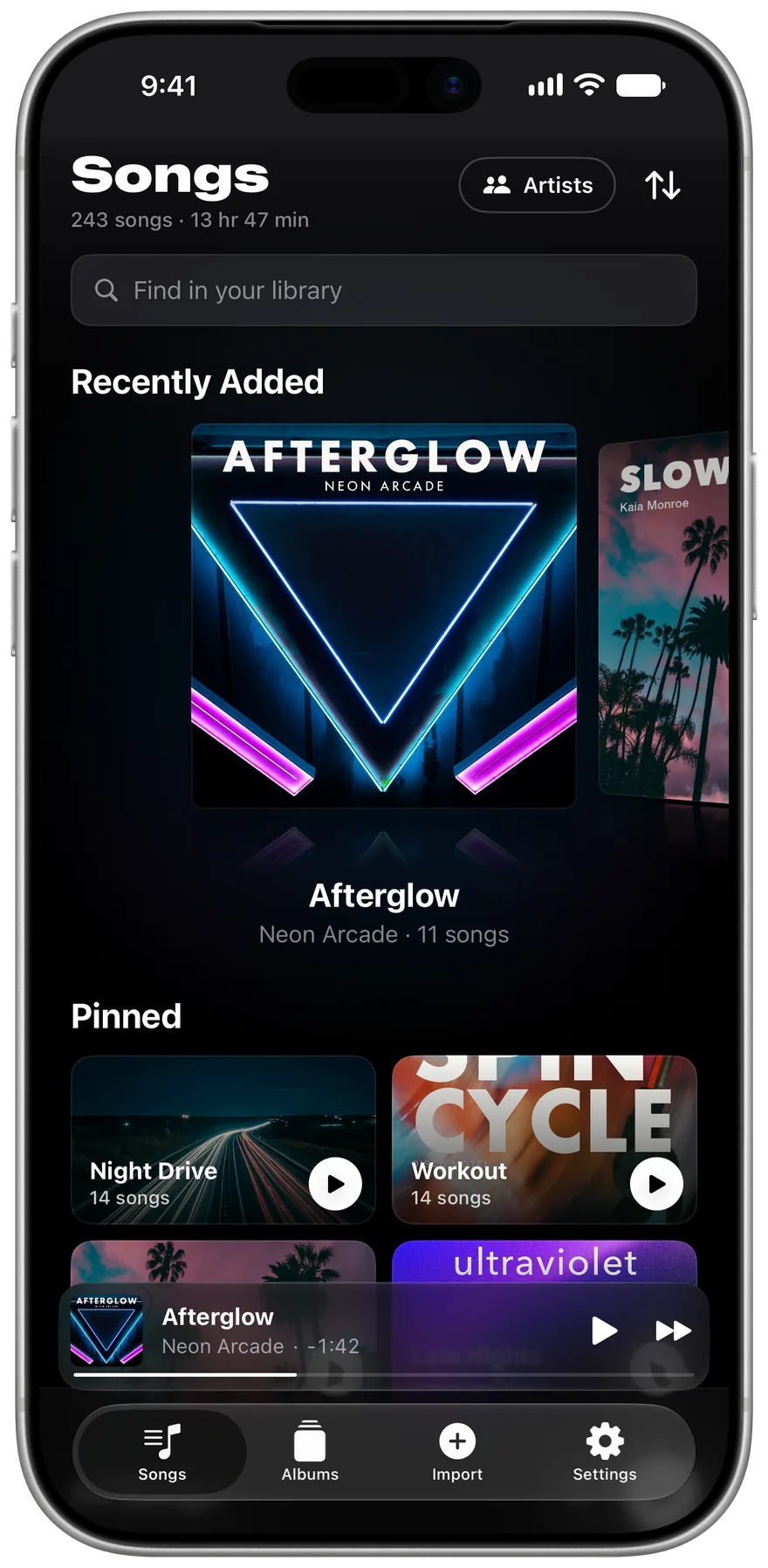
- Open the app on your iPhone. The songs appear in the Songs tab.
Apple documents this in Use the Finder to share files.
From a Windows PC
- Install the Apple Devices app from the Microsoft Store and connect your iPhone.
- Select your iPhone in the sidebar, then choose Files.
- Pick Music Player, click Add File, choose your songs and click Add.
- Open the app on your iPhone.
Apple's steps are in Use Apple Devices to share files.
Without a cable
Upload the songs to iCloud Drive from the computer, then on your iPhone open Import in the app, tap Choose Files and pick them. Download them in Files first if they show a cloud icon.
Keep a copy
Deleting the app also deletes the songs inside it, so keep your originals on the computer. The app's backup in Settings saves your albums, edits, lyrics and stats, and it doesn't include the audio files.
Related guides
Get Offline Music Player
It's free, and it has no ads.